


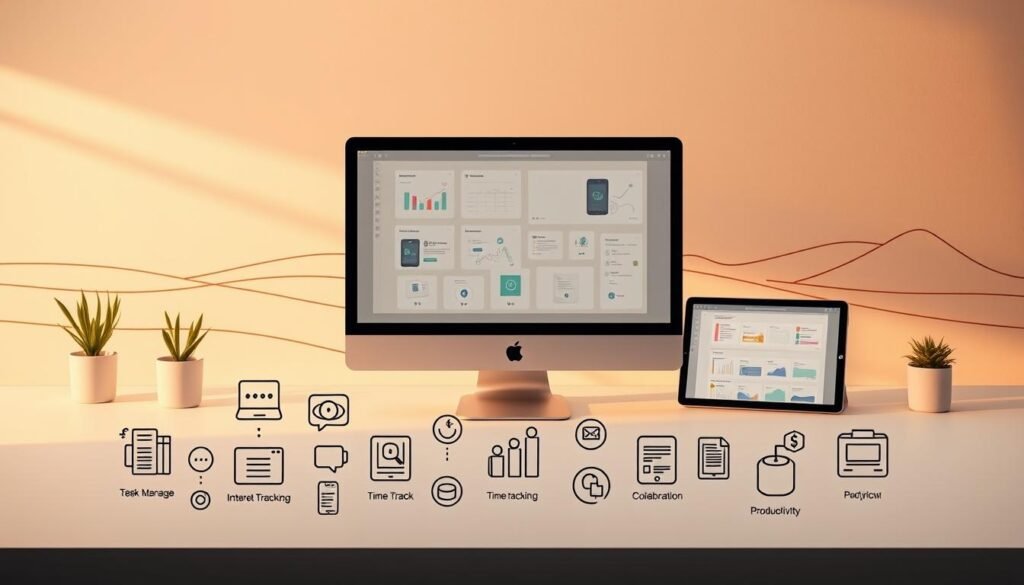
Why do professionals lose 40% of their productive capacity to scattered communication channels and constant interruptions? They switch attention every 40 seconds, leading to a mental drain. This is called workflow friction, which slows down work in today’s world.
Workflow friction comes from many places. Tools don’t talk to each other, causing problems. Communication delays slow down projects. And distractions make it hard to focus.
Friction-light workflows offer a better way. Instead of just working harder, they use smart design. Studies show this method can cut down on distractions by 40% and speed up tasks by up to 60%.
To make workflows smoother, we need to tackle both outside and inside challenges. Using the right tools and supports can help. This way, we can make hard tasks easier and more in line with how our brains work.
Key Takeaways
- Workflow friction costs professionals up to 40% of their productive capacity through scattered tools and constant attention shifts
- The average knowledge worker changes focus every 40 seconds, creating significant cognitive drain that undermines effectiveness
- Friction-light workflows use systematic approaches and intelligent design, not just willpower, to boost performance
- Strategic workflow optimization can reduce interruptions by 40% and speed up task completion by up to 60%
- Effective solutions tackle both outside issues like technology and inside challenges like managing mental load
- Using environmental cues and automation helps create supports that reduce daily process resistance
Understanding Workflow Friction and Its Impact on Productivity
The way work processes are set up can make or break a team’s success. Workflow friction comes from problems in the system, not from individual mistakes. These issues slow down work and waste time without helping the team achieve their goals.
People often switch their focus every 40 seconds at work. This constant switching costs a lot of mental energy. It’s not just about being distracted; it’s about the design of how we work together online.
To spot workflow friction, you need to look beyond the surface. Signs like scattered feedback and delays in communication point to deeper problems. These need a thorough look, not just quick fixes.
Identifying Hidden Time Drains in Your Daily Processes
There are many hidden ways that work can slow you down. Email, Slack, and PDFs can make it hard to keep track of things. This makes it hard to focus and wastes mental energy.
Version confusion is another big problem. Teams often can’t tell which document is the latest version. This leads to wasted effort and conflicting changes. Without a clear place to find all documents, things get even worse.
When team members can’t see each other’s work, feedback gets mixed up. This causes delays and makes it hard to move forward. Task management systems that are clear and open help avoid these issues.
Automation can help avoid a lot of repetitive work. But without it, we spend a lot of time doing the same things over and over. This time adds up and doesn’t help us do our jobs better.
Switching between tasks costs a lot of mental effort. It takes a lot of time to get back to where you were before. This makes it hard to stay focused and productive.
How Friction Affects Mental Energy and Focus
Workflow friction uses up our mental energy, making it hard to focus. Every time we switch tasks, we lose some of our mental power. This makes it harder to do deep, important work.
Managing workflow takes up a lot of mental energy. We spend time tracking down information and dealing with conflicting feedback. This doesn’t really help us get our work done.
Having to make too many small decisions also drains our mental energy. Without clear rules, we make a lot of little choices. This leaves us with less energy for big, important decisions.
Friction and focus are connected in a cycle. Friction makes us stressed, which makes it harder to focus. To break this cycle, we need to tackle the root causes of friction. Workload management strategies can help a lot more than just trying to stay focused.
| Friction Type | Cognitive Impact | Time Cost Per Day | Primary Solution Category |
|---|---|---|---|
| Scattered Feedback Channels | Context reconstruction overhead | 45-60 minutes | Centralized collaboration platforms |
| Version Confusion | Decision paralysis and conflict reconciliation | 30-45 minutes | Version control systems |
| Manual Data Transfer | Attention fragmentation | 60-90 minutes | Workflow automation tools |
| Stakeholder Visibility Gaps | Coordination complexity | 40-55 minutes | Transparent task boards |
The Business Case for Workflow Optimization
Workflow friction costs a lot of money. It makes projects take longer, which means less money comes in sooner. It also means teams have to do more work because of mistakes and confusion.
But the biggest cost is what we miss out on. When we’re busy managing workflow, we can’t focus on important things. Leaders get stuck solving problems instead of planning for the future. Teams spend their time on coordination, not on being creative.
Workplace efficiency improvements can really pay off. Teams that work better can focus more and get things done faster. This makes everyone happier and more productive.
When teams are happy and focused, they do better work. They’re more likely to stay with the company, which saves money. They also come up with new ideas, which helps the company stand out.
Improving workflow is not just about saving money. It’s about being better than the competition. Companies that work smoothly can adapt faster and innovate more. Task management systems that make things easier are key to success.
Investing in workflow optimization pays off in many ways. It frees up mental energy, which leads to better decisions and more improvements. This creates a cycle of success that keeps a company ahead of the game.
Conducting a Personal Workflow Audit
Looking closely at daily tasks shows us where things get stuck. Most people don’t really know how they spend their time or what slows them down. A detailed audit helps fix this by using real data to improve workflow.
This audit turns hidden habits into clear patterns. It helps people see where they spend their time and what works well. It shows that what we think is true often isn’t, when it comes to how we work.
Finding the real problems is key. Bottlenecks can be things like too many places to get feedback or confusion over different versions of documents. Knowing these issues lets us fix the right problems, not just try to save time in general.
Capturing Activity Patterns Through Seven-Day Tracking
Tracking for a week gives enough data to spot patterns without getting too tired of it. People log when they start tasks, how often they get interrupted, and when they switch between tasks. This shows what real work looks like, not just what we wish it did.
Good tracking looks at tasks in different ways. It checks if tasks are important, how hard they are to do, and if they cause problems. Problems can come from tools that don’t work well, not being able to get information, or not knowing what to do next.
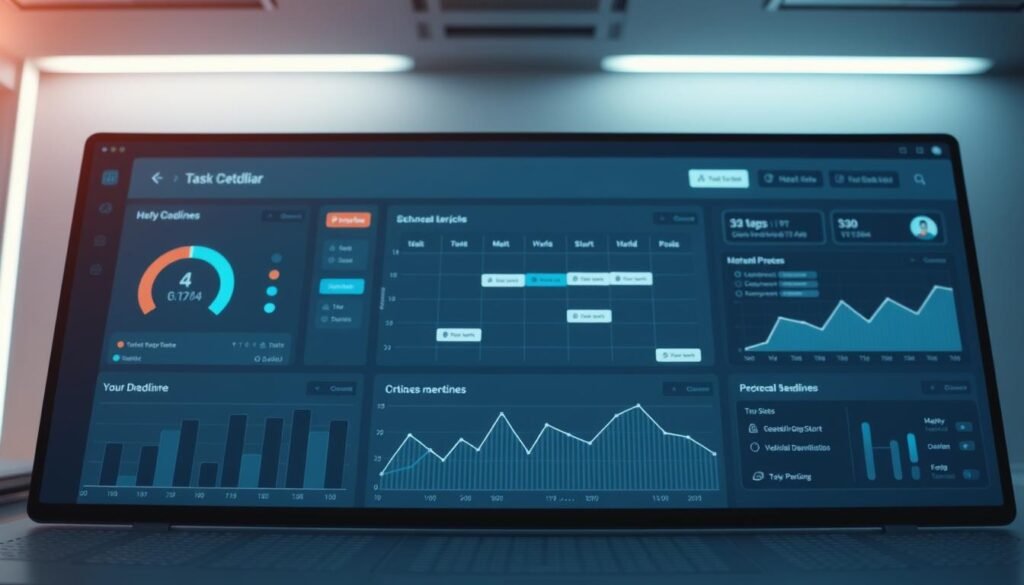
Tracking in a way that doesn’t mess with how people work is important. It’s not about documenting everything perfectly. It’s about capturing what’s typical. Morning, afternoon, and evening are all different times that show different things about how we work.
There are many ways to keep track of data, like notes, apps, or spreadsheets. What’s important is to do it regularly and completely. Each entry should answer three questions: What were you doing? How long did it take? What made it hard to move on?
Identifying Automation Candidates Through Pattern Recognition
Tasks that happen a lot are good candidates for automation. But they need to meet certain criteria. It’s not just about doing the same thing over and over again.
Tasks that follow rules and have clear answers are perfect for automation. Sorting emails, organizing files, and making reports from templates are good examples. These tasks take a lot of time but don’t need creativity or understanding of the situation.
But tasks that need creativity, understanding people, or solving problems are not good for automation. Talking to clients, making big decisions, and checking quality are examples. These tasks are hard to automate because they involve things that are hard to predict.
There are four main ways to figure out if a task can be automated. You can look at how often it happens, how long it takes, if it’s prone to mistakes, and how much it uses up your brain. This helps decide if automating it would really help.
| Task Characteristic | High Automation Potencial | Low Automation Potencial | Decision Factor |
|---|---|---|---|
| Input Variability | Standardized formats | Unique contexts | Predictability enables programming |
| Decision Complexity | Rule-based logic | Judgment required | Algorithms handle clear conditions |
| Output Expectations | Consistent results | Customized outcomes | Templates support repetition |
| Frequency Pattern | Daily or weekly | Occasional occurrence | Setup cost justified by volume |
Evaluating Current Tool Performance Against Productivity Standards
Checking how tools work is more than just listing their features. It’s about how they really help us work better. Tools that are too complicated or hard to use are not worth it, even if they have lots of features.
How easy a tool is to learn is important. Tools that are hard to get started with might not be worth the cost. Good tools should make things easier right away, not harder.
Seeing how much of a tool people actually use is key. Many people don’t use most of what a tool offers. This means the tool might not be right for them. Good tools should be easy to use and make sense right away.
How well a tool works with other systems is also important. Tools that don’t work well together make things harder. Working together smoothly makes each tool more valuable.
How much time and effort a tool needs to keep working is another factor. Tools that are hard to manage take away from the time you can actually work. Knowing this helps choose tools that are worth it.
The real test of a tool is how it helps us work better. Tools that make us work faster, make fewer mistakes, or use less brainpower are the best. Finding the right tools is all about using real data to make good choices.
The personal workflow audit sets a baseline for improvement. Without it, trying to make things better is just guessing. People who take the time to really understand how they work can make real changes for the better.
Setting Up Digital Task Boards for Visual Management
Digital task boards turn abstract workflows into clear visuals. They use our natural ability to understand space. This makes it easy to see the status of tasks without reading a lot of text.
Traditional task lists don’t show how tasks relate to each other. Task boards fix this by showing tasks as cards moving through stages. This makes it easier to understand progress.
Choosing the right task management tools is key. You need to think about the platform, workflow design, and how it fits with your current systems. Using these tools well can make your workflow clearer and more efficient.

Platform Selection: Trello, Asana, and Monday.com Comparison
Choosing the right task management tools depends on your team size and workflow complexity. Trello, Asana, and Monday.com are popular choices. Each has its own strengths and fits different needs.
Trello is great for beginners and small teams. It’s easy to use and has features like automation and sharing. This makes it simple to get started with visual workflows.
Asana is a good middle ground. It offers smart reminders and lots of integrations. It’s good for managing projects with clear deadlines.
Monday.com is best for teams that need to see lots of information. It has flexible views and supports different types of work. It’s perfect for larger teams with complex projects.
| Platform | Best For | Key Strengths | Automation Capabilities |
|---|---|---|---|
| Trello | Small teams, freelancers, beginners | Simplicity, rapid setup, intuitive interface | Butler automation for card movements and recurring tasks |
| Asana | Medium teams with moderate complexity | Smart reminders, 100+ integrations, multiple views | Rules for task assignments and status updates |
| Monday.com | Large organizations, complex workflows | Flexible dashboards, Gantt charts, Work OS architecture | Advanced recipes connecting multiple boards and apps |
When choosing a platform, focus on what will make your workflow better. Don’t pick something too complicated. It’s better to start simple and add more features as needed.
Implementing Kanban Workflow Fundamentals
Kanban is a method that helps visualize and manage work. It was first used in manufacturing but works well for knowledge work too. It helps make tasks clear and shows where things are stuck.
Start by defining clear stages for your tasks. The basic stages are To Do, In Progress, Review, and Complete. This helps see how tasks move through the process.
Work-in-progress limits are important. They prevent too much work in one place. For example, limiting tasks in progress to three per person helps avoid overcommitting.
Using pull-based workflows is key. It means tasks are assigned when someone can do them, not when they’re available. This makes work flow better and reduces mistakes.
Make sure your task cards have the right information. Include the task title, description, who it’s assigned to, when it’s due, and its priority. Adding extra details can help but only if they’re really needed.
Personalizing Columns and Labels for Workflow Alignment
Start with basic Kanban columns but then customize them. This makes your task boards fit your specific workflow. It’s important to base customization on how work actually happens, not just how it should.
Use specialized stages for unique workflows. For example, marketing might have a stage for client approval. This makes the board more accurate for your work.
Use labels and colors to add more detail. This helps quickly see priorities and group related tasks. Keep the number of labels and colors low to avoid confusion.
Customize your task boards as you go. Start simple and add more features as needed. This helps avoid making the board too complicated.
Keep your labels simple and clear. Too many labels can make the board hard to read. Use colors and labels wisely to keep things organized.
Calendar Integration for Time-Task Alignment
Task boards are great for showing what needs to be done. But they need to work with calendars to show when things need to be done. This makes planning and scheduling easier.
Most task management tools have calendar views. These show tasks and deadlines in a timeline. This helps plan work better and avoid overcommitting.
Make sure your task board and calendar work together. This helps plan work and avoid double-booking. It makes planning and scheduling easier.
Use time-blocking to schedule tasks. This makes tasks concrete and easier to complete. It also helps avoid interruptions and keeps focus.
Plan your task board reviews with your calendar. This helps plan work better and avoid delays. It makes your workflow more efficient.
Using Tools, Checklists, and Accommodations to Simplify Workflows
Reducing workflow friction is more than just using tools. It’s about creating an ecosystem where technology, procedures, and accommodations work together. The best way to use tools, checklists, and accommodations to simplify workflows is to tackle multiple friction sources at once. This approach recognizes that technology, procedures, and individual needs all play a role and need to be addressed together.
Organizations that see real productivity gains know that a complete support system is key. They understand that automation should feel human-friendly, freeing up people to focus on insights. This means using tools that are easy to use and don’t distract from the task at hand.
Being productive is different from just looking busy. It comes from delegating simple tasks to systems. When professionals streamline processes by integrating tools thoughtfully, they create workflows that work for everyone. This balance is key to maintaining productivity.
Building Process Checklists That Actually Get Used
Many productivity checklists fail, often because they’re hard to access or too detailed. The real challenge is making checklists that people actually use when they’re busy. Good checklists are detailed enough to be useful but short enough to be practical.
Aviation and surgery show us how important checklists are in high-stakes fields. They teach us that following a checklist can make all the difference. The key is to make checklists easy to follow and to catch mistakes early.
Good checklists have three key features: they fit into the natural flow of work, are clear and specific, and reveal details only when needed. These features help checklists act as a helpful guide, not a burden.
Compare a vague checklist item like “prepare report” to a detailed sequence: check data, run analysis, create visuals, write a summary, and get feedback. The detailed version is clear and manageable. This makes checklists into actionable steps that streamline processes effectively.
Storing Checklists in Accessible Digital Formats
Digital checklist systems need to be easy to find within the workflow. The challenge is to make them accessible without cluttering the workspace. Tools like Notion, Google Docs, Asana, and ClickUp offer different ways to manage checklists.
Notion is great for creating detailed checklist databases with customizable views. It’s flexible and allows teams to link checklists to relevant documents. Google Docs is simple and accessible, making it perfect for teams that value ease of use.
Asana and ClickUp integrate checklists into task management, making it easier to manage projects. This integration saves time by reducing the need to switch between tools. It’s important to keep checklists up to date as processes change.
Effective digital checklist systems have three key features: a single source of truth, change logging, and automated updates. These features ensure that checklists are accurate and up to date, supporting continuous improvement.
| Platform | Primary Strength | Best Use Case | Integration Capability |
|---|---|---|---|
| Notion | Database flexibility | Complex knowledge management | API connections, embedded content |
| Google Docs | Universal accessibility | Team-wide simple checklists | Google Workspace native |
| Asana | Task integration | Project-specific workflows | 1000+ app integrations |
| ClickUp | Customization depth | Multi-team coordination | Native automation features |
Combining Multiple Support Systems for Maximum Impact
Integrated support systems offer more value than individual tools. Tools like Luxafor focus lights work with automation and environmental adjustments to reduce friction. This layered approach tackles multiple friction points, creating resilient workflows.
Adaptive technologies work together to reduce friction. A visual timer, automated file organization, and quiet zones all help. Each element targets a specific friction source, creating an environment for sustained focus.
The key to effective combination is mapping friction points to the right interventions. Technology, procedures, and individual needs all need to be addressed. Organizations achieve the most when they use productivity solutions across these areas.
Real-world examples show that three-layer support systems work best. Tools handle routine tasks, checklists standardize complex sequences, and environmental adjustments support individual preferences. This balance is essential for sustainable productivity.
Creating Your Personal Workflow Support Stack
Building a personal support stack starts with a thorough inventory of tools. Identify gaps and redundancies, then choose complementary solutions. This process reveals where tools overlap and where needs are unmet. The goal is to create a cohesive system where each tool has a distinct role.
Begin by documenting all tools in use, categorizing them by function. This often reveals redundancy. Consolidation opportunities become clear through this analysis.
Next, evaluate each tool’s effectiveness using three criteria: adoption rate, friction reduction, and integration quality. Productivity checklists help ensure consistent evaluation across different tools.
Select tools that fill identified gaps and integrate well with existing workflows. Prioritize tools that connect with your calendar, email, and project management systems. Choose tools that are easy to use consistently, even if they’re not the most feature-rich.
Review your workflow support stack quarterly. As work demands and new technologies emerge, reassess your support system. This ensures it stays aligned with current needs. Regular review prevents stagnation and the constant need to switch tools.
The most productive professionals don’t use more tools—they use fewer, better-integrated tools that address their specific friction points with precision.
Documenting your workflow support stack creates knowledge that lasts beyond role changes. When professionals explain their tool choices and how they work together, they enable knowledge transfer. This turns personal optimization into a scalable team capability.
Implementing Time-Blindness Aids and Timer Strategies
Abstract work without clear time markers makes it hard for the brain to keep track of time. This leads to problems with productivity. Tools that help with time-blindness act as behavioral architecture, not just willpower substitutes. They create external structures to help with internal time awareness issues.
Effective time management solutions tackle both time perception and attention regulation. Visual signals like colored lights help. They signal when you’re in deep work mode and when you’re available. This quiet communication helps avoid distractions and reminds you to stay focused.
Small environmental cues can make big changes. People in abstract work fields benefit from technology that makes time visible. It breaks down continuous days into clear intervals and sets predictable rhythms. This reduces the mental effort needed to keep track of time.
Selecting Visual Timer Tools for Desktop and Mobile
Visual timers turn abstract time into something you can see. They use graphics that shrink over time. Desktop apps keep the timer in view, while mobile apps are portable and can send notifications.
Good tools are visible but don’t distract. They have clear signals when your work is done. This helps prevent work from going on too long.
It’s important for tools to be easy to set up. If they’re hard to use, people might not keep using them. This is true, even when they’re most needed.
Time Timer apps use a visual disk that shrinks as time goes by. This helps people who understand space better than numbers. The physical version also helps teams know when you’re available.
Focus Booster helps with structured work sessions. It tracks your progress over time. This helps you understand how much you can really do.
Operating system timers work well with what you’re already doing. They’re simple and work across different devices. This makes them easy to use and consistent.
| Timer Type | Primary Advantage | Best For | Integration Level |
|---|---|---|---|
| Physical devices | Tangible presence without screen space consumption | Open office environments requiring visible focus signals | Standalone operation |
| Desktop applications | Prominent display during computer-based work | Knowledge workers spending majority time at workstation | Operating system level |
| Mobile apps | Portability across locations and devices | Professionals with variable work locations | Cloud synchronization |
| Browser extensions | Visibility within primary work environment | Individuals conducting most work in web browsers | Browser ecosystem |
Using the Pomodoro Technique With Digital Timers
The Pomodoro Technique uses set work intervals and breaks. It helps manage time by creating clear segments. This approach also allows for recovery periods to avoid burnout.
Digital timers make it easy to follow the Pomodoro Technique. They automate the transitions between work and breaks. This saves mental energy and helps track progress.
The traditional 25-minute work interval is just a starting point. Tasks and personal focus levels can vary. Some tasks might need longer or shorter intervals.
Creative tasks might need longer uninterrupted time to get into a flow. Administrative tasks with many interruptions might do better with shorter intervals.
It’s important to be realistic about how long you can focus. Starting with shorter intervals and increasing them as needed is more sustainable. This approach helps avoid frustration and burnout.
Breaks are important for your brain. Even short physical activity during breaks can help. Complete breaks from work allow your brain to consolidate information and improve retention.
- Cognitive recovery: Brief disengagement prevents attention fatigue accumulation that degrades work quality over extended sessions
- Context switching preparation: Planned transitions reduce cognitive cost compared to abrupt interruptions mid-thought
- Progress acknowledgment: Completed intervals provide measurable achievement markers in abstract work
- Deadline approximation: Counting required intervals for task completion improves estimation accuracy over time
Setting Up Time-Blocking in Google Calendar or Outlook
Time-blocking turns calendars into tools for managing time. It treats focused work periods as important as external commitments. This makes work plans more concrete and visible to others.
Google Calendar helps by creating separate calendars for different activities. Color-coding makes it easy to see what’s happening. Setting focus blocks as “busy” helps avoid meeting requests during focused work.
Outlook also offers ways to manage time. It integrates with Microsoft 365 tools. Teams status updates automatically when you’re in focus mode, helping others know when you’re available.
Recurring time blocks create predictable rhythms. Many people use mornings for deep work and afternoons for meetings. This helps manage energy and focus.
Weekly patterns, like “Meeting-Free Mondays,” protect time for focused work. These shared agreements help everyone plan better and avoid conflicts.
Effective time management is realistic, not idealized. Blocking eight hours for deep work ignores real attention limits and interruptions. Shorter focus blocks with breaks and meetings work better.
Calendar blocking includes time for commuting, meals, and personal activities. This approach prevents overbooking and helps manage time more effectively.
Creating Buffer Time Between Tasks
Buffer time is like an emergency fund for your schedule. It allows for unexpected delays without causing bigger problems. It’s for transitions, travel, and recovery after intense tasks.
People often plan as if tasks switch instantly. This leads to constant lateness and stress. Buffer time helps manage these transitions better.
Buffer time should be 10-15 minutes between meetings, but it varies. Longer buffers are needed for travel or emotionally demanding tasks. This helps you recover and perform better.
Buffer time does more than just help with transitions. It captures important decisions and action items. It also prevents burnout by giving your brain a break.
Setting up buffers requires discipline. It goes against the common idea of filling every minute with work. But research shows it leads to better work quality and less stress.
Creating personal buffer standards helps protect your time. Use different buffers for different tasks. This makes scheduling easier and less mentally taxing.
Digital calendars can help with buffer time. They suggest meeting times with buffers included. This saves time and reduces the need for manual adjustments.
Deploying Assistive Technology for Enhanced Accessibility
Advanced assistive technology solutions remove barriers, not just compensate for them. These adaptive workplace tools go beyond regular software to help with different needs. They help everyone, not just those with disabilities.
Today’s assistive tech makes work places more inclusive. It helps those who see, hear, or move differently. Studies show that accessibility features help the whole team, not just those with disabilities.
To use assistive technology well, you need to know how each person works. Putting these tools into daily work makes places more open to everyone. This way, different work styles and thinking are seen as normal.
Implementing Text-to-Speech Tools Like NaturalReader
Text-to-speech tech turns written words into sounds. NaturalReader and others help by letting you listen to documents. This is great for those who get tired of looking at screens or find it hard to read.
First, pick a voice that sounds natural but is clear. New voices are much better than old ones. Try different voices to find the one you like best.
It’s important to make the speed right. Most people start with 1.5x or 2x speed. This way, they can read long documents faster without missing important points.
To use these tools well, set clear rules. Decide which documents to listen to, like contracts or articles. You can use browser extensions for web content and apps for PDFs and word documents.
Setting Up Dragon NaturallySpeaking for Voice Input
Voice input tech helps those with injuries, who write better by speaking, or have trouble typing. Dragon NaturallySpeaking is top-notch, getting very accurate with just a little training.
Start by making a voice profile in about five minutes. It learns your speech, accent, and how you say words. Later versions get even better without needing more training.
Use special commands to navigate and edit documents. Learn to say things like “new paragraph” and “cap that.” This makes voice input more than just talking.
Good voice input needs a good microphone. Use one that’s close to your mouth and try to speak naturally. Headsets are usually better than desk mics because they stay in the same place and block out background noise.
Using Grammarly and Hemingway for Writing Support
Writing tools like Grammarly and Hemingway help with different writing challenges. Grammarly checks for spelling and grammar mistakes. Hemingway makes sentences clearer and easier to read.
These tools help those with dyslexia, trouble focusing, or who are not native English speakers. Together, they make writing better in many ways.
| Feature Category | Grammarly Approach | Hemingway Approach | Optimal Use Case |
|---|---|---|---|
| Primary Focus | Grammar, spelling, punctuation accuracy with contextual suggestions | Sentence complexity, readability scores, passive voice detection | Use Grammarly for technical accuracy; Hemingway for clarity |
| Pricing Structure | Freemium model with premium advanced features at $12-30 monthly | One-time desktop purchase at $19.99 or free web version | Grammarly for ongoing projects; Hemingway for budget-conscious users |
| Integration Options | Browser extensions, Microsoft Office add-ins, desktop applications | Web-based editor, desktop application for Mac and Windows | Grammarly for seamless workflow integration across platforms |
| Learning Curve | Intuitive interface with explanations for suggested corrections | Color-coded feedback system requiring minimal instruction | Both tools suitable for immediate implementation without training |
To use these tools well, start with Grammarly to fix mistakes. Then, use Hemingway to make sentences clearer. This makes editing easier and less stressful.
Installing Focus Apps Like Freedom or Cold Turkey
Focus apps block distractions to help you stay focused. Freedom and Cold Turkey are top choices. They help you avoid digital distractions.
Freedom works on all your devices, so you can stay focused everywhere. Make a list of sites and apps that distract you. This helps you stay on track.
Cold Turkey is more strict, with a “Frozen Turkey” mode. It’s great for tough projects that need your full attention. It blocks whole categories of sites, like social media or news.
To use these apps well, know what distracts you. Track your browsing for a week to find out. This way, you block only what really distracts you.
Focus sessions work best when they match your energy and task needs. Block distractions in the morning when you’re most focused. Be more flexible in the afternoon for lighter tasks. These tools help you stay on track by changing your environment, not just your willpower.
Using many assistive tech tools together makes work easier. You can use text-to-speech, voice input, writing tools, and focus apps together. This helps with many challenges at once, making work more productive.
Automating Repetitive Tasks With Workflow Software
Workflow automation changes how we work. It makes tasks run without needing us all the time. This saves our brains for more important things.
Task automation is about simple tasks like sorting emails. Business process automation is about bigger tasks that involve many steps. It’s like the difference between doing one thing versus a whole project.
Today’s automation tools connect different software systems. They make sure information moves smoothly between apps. This makes work faster and less likely to have mistakes.
Building Cross-Platform Connections Through Integration Tools
Zapier and Make help link thousands of apps together. They use simple rules to make things happen automatically. You don’t need to know how to code to use them.
These tools can handle complex tasks. They use “if-then” rules and other logic to make decisions. For example, they can send emails based on what someone does online.
Lindy lets you create AI agents that do tasks for you. They can handle emails and meetings without needing to be told. They work with many apps and don’t need coding.
Automation helps in many ways. It can post on social media and track how people interact with your posts. It can also make sure documents get approved and invoices get paid without you.
Implementing Intelligent Email Management Systems
Email automation makes sorting and answering emails easier. It uses smart rules and templates to save time. This way, you can focus on more important emails.
It can sort emails for you based on who they’re from and what they’re about. It also knows which emails to answer right away and which to deal with later. This helps you stay on top of your emails without getting overwhelmed.
AI can help with meeting notes and emails. It can even write responses for you. This helps you work smarter and not harder.
To make email automation work, you need clear rules and templates. Decide which emails need your attention right away and which can wait. Use templates that are friendly but professional.
Designing Self-Organizing File Management Architectures
Automating file organization makes it easier to keep your files in order. It uses rules to decide where files go. This saves you time and effort.
Using clear naming and folder structures helps. This way, both humans and computers can find files easily. It’s like having a map for your files.
Here are some ways to organize files:
- File type routing: PDFs go to one place, images to another
- Content-based sorting: Text in documents helps decide where they go
- Source application rules: Files from certain apps go to specific folders
- Date-based archiving: Old files move to archives automatically
Cloud storage services like Google Drive and Dropbox have built-in automation. They watch folders and do things when files show up. Working with other tools makes it even better.
Establishing Automated Recurring Task Workflows
Automation helps with tasks that happen over and over. Like weekly reports or yearly reviews. It saves you from having to remember to do them.
It can start tasks automatically at set times. For example, weekly reports go out every Friday. This saves you time and makes sure things get done.
It can even adjust tasks based on what’s happening. For example, planning for the end of a quarter might need different steps. This keeps tasks relevant and saves you from having to change them all the time.
To automate recurring tasks, start with templates and set up triggers. Look at what you do regularly and see what can be automated. Focus on tasks that take up a lot of time.
Linking task management tools with calendars helps keep everything in sync. Tasks show up in your calendar and project boards. This helps avoid conflicts and keeps you informed.
Building Reusable Templates for Common Work Activities
Using organizational tools like templates changes how we work. It saves mental effort by keeping common tasks simple. This lets us focus on the important stuff.
Templates make work faster and better. They help us do things like answer emails and plan meetings without wasting time. This means we can do more in less time.
Having digital organization tools for templates makes it easy for teams to work together. These tools let us create templates that can be used in many ways. This makes work easier and more efficient.
Creating Email Templates in Gmail or Outlook
Emails are a big part of our work. Using templates saves a lot of time without losing the personal touch. We can send out messages quickly and easily.
Gmail and Outlook have tools to help with email templates. They make it easy to use templates and save time. This is a big help for busy professionals.
Good email templates are personal and clear. They have special parts for the person you’re emailing and what you’re talking about. They’re easy to read and show you care.
Advanced tools like TextExpander make templates even better. They let you type less and get more done. This is a big time-saver.
Designing Document Templates in Google Docs or Microsoft Word
Long documents like reports and guides benefit a lot from templates. They keep everything looking right and make sure we don’t forget important parts. This makes documents look professional and easy to understand.
Google Docs and Microsoft Word have great tools for making templates. They help keep things looking the same and make it easy to add information. This makes documents better and faster to make.
To make good document templates, we need to know what documents we make a lot. We can then make templates for those. For example, a project proposal template might have sections for the summary, problem, solution, timeline, budget, and success metrics.
These templates can have special features like automatic titles and dates. This makes documents more accurate and saves time. It also makes it easier to find the right template for the job.
Setting Up Meeting Agenda Templates
Meetings take up a lot of time and can be confusing. Using templates makes meetings better by keeping them focused and productive. This helps everyone know what to do and what to expect.
Good meeting agendas have important parts like the purpose and what you want to achieve. They also have a list of things to talk about and who should be there. This makes meetings more effective.
There are many ways to use meeting agenda templates. You can use simple documents or more advanced tools like Notion, Coda, or Confluence. These tools help keep everything organized and make it easier to follow up after the meeting.
| Agenda Component | Purpose | Time Allocation | Expected Output |
|---|---|---|---|
| Meeting objectives | Establish shared understanding of goals | 2 minutes | Clear success criteria |
| Topic discussion | Examine issues requiring input | 15-20 minutes per topic | Documented perspectives |
| Decision points | Resolve questions requiring choices | 5-10 minutes per decision | Recorded decisions with rationale |
| Action items | Assign specific follow-up tasks | 5 minutes | Task list with owners and deadlines |
Developing Project Brief Templates
Project briefs are important for starting a project right. They help make sure everyone knows what to do and what to expect. This is very helpful for projects that are similar but different.
Good project brief templates have important information like the project’s purpose and what it’s expected to achieve. They also talk about what the project includes and what it doesn’t. This helps avoid problems later on.
These templates also have sections for things like who’s involved, how to communicate, risks, and how to measure success. This makes it easier to manage projects and make decisions about resources. It saves time and helps make better decisions.
Establishing Quiet Zones and Optimal Physical Workspaces
The physical workspace is key to reducing workflow friction and supporting focus. Factors like noise levels, lighting, and spatial setup can either help or hinder deep work. Studies show that making the environment better can boost productivity as much as improving processes.
Our brains compete with sensory inputs, needing to filter out distractions. Small issues like temperature, visual, and auditory distractions add up. To tackle this, companies set up quiet zones and ergonomic standards.
Designating Focus Hours With Do Not Disturb Signals
Creating dedicated focus times needs clear signals to others. Visual cues help set boundaries, avoiding the need for verbal reminders. This approach reduces interruptions and boosts focus.
Tools like Luxafor lights use color to signal availability. Red means deep work, green for questions, and yellow for brief exchanges. These signals are easy to understand and help maintain focus.
Such systems also boost focus by making it clear when you’re not to be disturbed. Studies show they cut down on interruptions by 40%. This lets workers dive deeper into tasks without worry.
Here are ways to implement these systems:
- Desktop status lights for visible signals
- Door signs or desk flags for physical offices
- Digital status indicators on platforms like Slack
- Calendar blocking with clear names
- Team agreements on response times
Supporting these practices sets a culture where focus is valued. Leaders need to model and allow these practices to become the norm.
Requesting Noise-Reducing Accommodations
Noise is a big distraction, more so in open offices. It affects focus and can lead to mental fatigue. To manage this, both personal and organizational steps are needed.
Individual solutions like noise-canceling headphones can help right away. They block out constant sounds and let you add calming sounds. These tools give you control over your environment, no matter the office policy.
White noise machines can also help by masking sounds. They make it harder to hear conversations, reducing distractions. Mobile apps offer similar benefits when devices are not practical.
Organizations can also make changes to reduce noise:
- Designated quiet zones for focused work
- Sound-dampening materials to reduce noise
- Private focus rooms for deep work
- Spatial reconfiguration to separate areas
Requesting workplace accommodations should focus on how it improves work. Showing how noise reduction boosts productivity can help get approval. Under the Americans with Disabilities Act, some noise sensitivities qualify for accommodations.
| Accommodation Type | Implementation Scope | Approval Requirements | Typical Cost Range |
|---|---|---|---|
| Noise-Canceling Headphones | Individual | Self-implemented or expense reimbursement | $200-$400 |
| White Noise Machines | Individual workspace | Manager approval or self-purchase | $50-$150 |
| Acoustic Panels | Team or department | Facilities department coordination | $500-$3,000 |
| Private Office Assignment | Organizational | HR and leadership approval with justification | Variable by location |
Linking adaptive workplace accommodations to productivity metrics can increase approval chances. Showing how noise affects work can make a strong case for changes.
Optimizing Lighting and Ergonomic Setup
Physical comfort is key to avoiding distractions. Bad lighting and poor ergonomics can lead to headaches and injury. Following workplace ergonomics guidelines can help.
Lighting should be natural and controlled. Positioning monitors right can reduce glare. Task lighting adds focus without over-illuminating.
Screen setup is also important. Monitors should be at eye level and screens should be at arm’s length. This reduces neck strain and improves focus.
Keyboard and mouse setup should support neutral wrist positions. This prevents injuries from awkward angles. Using ergonomic accessories can help.
Chair setup is critical for long sitting hours. It should support the spine and allow for movement. Proper adjustment can reduce discomfort and improve focus.
Organizations can provide ergonomic assessments to improve workspaces. This helps identify and fix issues that affect focus and comfort.
Creating Sensory-Friendly Work Areas
Everyone experiences the environment differently. Some find certain sounds or lights overwhelming. Sensory-friendly spaces can help everyone focus better.
Lighting is a big factor. LED lights and dimmers can help. They reduce flicker and let workers adjust the light to their liking.
Temperature control is also important. Personal heaters or fans can help. Layering clothes and choosing workspace locations can also help regulate temperature.
Considerations for sensory-friendly spaces include:
- Adjustable environmental controls for personal comfort
- Sensory retreat spaces for low-stimulation areas
- Flexible location policies for better fit
- Accommodation awareness training for understanding differences
Creating sensory-friendly spaces is a proactive step. It supports diverse needs and improves overall performance. It’s about making the environment work for everyone.
Adopting Flexible Meeting Formats and Communication Protocols
Flexible meeting formats and good communication protocols are key to smooth workflows. They help teams with different work styles. Old meeting ways, like everyone having to be there at the same time, can be tough for some.
Meetings can actually slow things down. They’re meant to help teams work together but often don’t. By setting up clear rules for talking, meetings can be more productive and respectful of everyone’s time.
It’s important to think about when meetings are really needed. Some things need to be talked about in real time. But other tasks can be done in different ways that are more efficient.
Offering Asynchronous Alternatives to Live Meetings
Asynchronous communication helps teams work together without being in the same place. It’s great for teams across different time zones. This way, everyone can contribute when they’re most focused.
There are many ways to work together without being in the same room. For example, you can review documents together online. This way, everyone can give feedback without having to be there at the same time.
Using online forums for discussions helps keep conversations going even when people are not online at the same time. This way, everyone can contribute when they can, not just when they’re online.
Some things, like making big decisions or building relationships, need to be talked about in real time. But other tasks, like sharing information or reviewing documents, can be done in other ways.
Having clear rules for meetings helps everyone know what to expect. This makes meetings more productive and respectful of everyone’s time.
Providing Meeting Agendas 24 Hours in Advance
Having agendas ready a day before helps meetings run smoothly. It gives everyone time to prepare and know what to expect. This makes meetings more focused and productive.
Good agendas should have clear goals and a plan for the meeting. They should also tell everyone what they need to do before the meeting. This helps everyone come prepared and ready to contribute.
Having clear agendas helps meetings stay on track. It makes sure everyone knows what to expect and helps avoid unnecessary discussions. This makes meetings more efficient and effective.
Using the same way to send out agendas helps everyone know what to do. Whether it’s through email, a team chat, or a project management tool, consistency is key. This saves time and reduces confusion.
| Meeting Approach | Primary Purpose | Best Use Cases | Key Advantages | Recommended Tools |
|---|---|---|---|---|
| Synchronous Live Sessions | Real-time collaboration and immediate feedback | Complex negotiations, brainstorming, relationship building | Rapid clarification, dynamic interaction, social connection | Zoom, Microsoft Teams, Google Meet |
| Asynchronous Video Updates | One-to-many information sharing | Project updates, training content, announcements | Time zone flexibility, rewatchable content, reduced interruptions | Loom, Vidyard, Slack video messages |
| Collaborative Document Review | Structured feedback collection | Document editing, proposal review, planning processes | Permanent record, thoughtful responses, parallel contribution | Google Docs, Notion, Confluence |
| Threaded Discussions | Extended dialogue with decision documentation | Policy development, strategic planning, problem-solving | Searchable archives, inclusive participation, transparent reasoning | Slack threads, Microsoft Teams channels, Basecamp discussions |
Recording Sessions for Later Review
Recording meetings helps everyone remember important points. It saves time and makes sure everyone is on the same page. This is helpful for people who need to think about things before they can talk about them.
Choosing the right tool for recording is important. Look for one that automatically transcribes and is easy to search. Zoom, Microsoft Teams, and Google Meet are good options.
It’s important to let everyone know when you’re recording. This is a matter of respect and can be required by law. Having clear rules about recordings helps everyone feel comfortable and secure.
Keeping recordings organized is key. Use clear names and include timestamps for important parts. This makes it easy to find what you need without wasting time.
Recording meetings can make some people feel uncomfortable. It’s important to make sure everyone knows it’s for reference, not to judge. Giving people the option to pause the recording can help everyone feel more at ease.
Using Collaborative Documents for Real-Time Input
Working together on documents in real time is a great way to collaborate. It’s good for introverts and people who need time to think before they speak. It’s also helpful for teams in different places.
Using tools like Google Docs, Notion, and Microsoft Word Online makes it easy for many people to work on a document at the same time. This way, everyone can contribute right away, not just one person at a time.
Having a plan for documents helps keep things organized. Use sections for different topics and a place for decisions. This makes it easy to follow along and makes sure everyone knows what’s happening.
Working together on documents makes it faster to get things done. Everyone can contribute at the same time, which saves time. This way, meetings can be more focused and productive.
Using different ways to work together is key to a smooth digital workplace. Mix things like video updates, live meetings, documents, and recordings. This way, you can meet different needs in the best way possible.
Creating Team Working Agreements That Reduce Friction
Without clear team agreements, everyday work turns into a constant battle. Every conversation is filled with hidden expectations and possible misunderstandings. Team working agreements are like a social contract. They turn hidden expectations into clear promises that everyone can agree on.
These agreements make it easier to know what to expect from each other. No more guessing if someone wants an immediate answer or if they get upset by too many interruptions. Everyone knows the rules for communication, availability, and who makes decisions.
Teams that use these agreements work better together. They get things done faster and with less hassle. This leads to a more efficient workplace.
Defining Response Time Expectations
Teams often have different ideas about how fast to respond. Some want answers right away, while others prefer to check messages later. Without clear rules, everyone feels frustrated.
Setting clear response times helps. For urgent matters, like system failures or client emergencies, teams need to act fast. For less urgent tasks, they have more time to respond.
Using clear labels on messages helps too. For example, [URGENT] means you need to respond quickly. Emails without labels are usually okay to answer within 24-48 hours.
These rules make communication easier. Team members know when to expect answers and when to focus on their work. This reduces stress and makes everyone more productive.
Establishing Communication Channel Guidelines
Teams often use many different ways to talk, like email, instant messaging, and video calls. Without rules, it’s hard to keep track of where to find important information. Clear guidelines help avoid this problem.
Instant messaging is best for quick questions and urgent messages. Email is better for formal messages and things that need to be documented. Video calls are great for meetings and discussions that need a face-to-face connection.
Having clear rules for communication channels makes work smoother. It reduces confusion and helps teams work together more effectively.
Setting core collaboration hours helps teams work together better, even if they are in different time zones. Everyone knows when to be available for meetings and urgent tasks. This makes it easier to coordinate and reduces misunderstandings.
During core hours, team members are expected to be available and responsive. Outside of these hours, they can focus on their own work without interruptions. This balance helps everyone work more efficiently.
These agreements make it easier to know when to expect responses. It reduces frustration and helps teams work better together. It’s all about finding a balance between teamwork and individual work.
Documenting Decision-Making Processes
Teams often struggle with unclear decision-making processes. Without clear rules, decisions can be slow and confusing. Documenting these processes helps avoid these problems.
Clear decision-making frameworks help teams make decisions faster and more confidently. They define who makes decisions, who needs to be consulted, and how decisions are documented. This reduces confusion and improves teamwork.
Decision-making frameworks help teams work better together. They reduce misunderstandings and improve communication. This leads to better decision-making and more efficient work.
Teams that document their decision-making processes work more efficiently. They make decisions faster and with less confusion. This leads to better teamwork and more productivity.
By developing clear team working agreements, teams can work more efficiently. They reduce misunderstandings and improve communication. This leads to better teamwork and more productivity.
Developing and Implementing Accommodation Plans
Workplaces often don’t fit everyone’s needs. They’re made for the average person, but people are different. Accommodation plans make workspaces better for everyone.
These plans help solve problems in the workplace. They make work better for everyone, not just some. It’s all about making the workplace better for everyone.
Creating good plans involves a few steps. First, you figure out what you need. Then, you ask for help from your employer. Next, you make changes you can control. And last, you check if these changes are working well.
Assessing Individual Requirements and Friction Sources
Understanding how work affects you is key. Look at how your environment impacts your work. This helps you know what you really need.
Look at many things in your work environment. Sensory factors like noise and lighting are important. So are how you schedule your work and how you communicate.
Also, think about your physical space. This includes your desk and how it’s set up. And how you organize your work area.
It’s important to know what you really need. Some things make you more comfortable, but others are essential for doing your job well.
Accommodations should help everyone do their best, not just give special treatment. The goal is fairness in work success.
Keep track of how your work environment affects you. Note any problems you face. This helps when you ask for changes.
Navigating Formal Organizational Processes
Getting help from your employer can be tricky. There are rules and steps to follow. Knowing these can help you get the support you need.
In the U.S., the Americans with Disabilities Act helps. It covers many conditions that affect work. This includes ADHD, autism, and anxiety disorders.
When you ask for help, follow certain steps. Start with your HR department. They might ask for medical proof, but they keep your health info private.
Working together with your employer is key. Talk about your needs and find solutions that work for both of you. This can lead to creative solutions you hadn’t thought of.
- Submit written requests documenting specific needs and proposed solutions
- Provide supporting documentation from qualified healthcare providers when requested
- Participate actively in interactive discussions exploring implementation options
- Clarify how proposed modifications enable essential job function performance
- Establish trial periods allowing assessment of accommodation effectiveness
Your employer should keep your requests private. Only people who need to know should see your information.
Implementing Self-Directed Modifications
Some changes don’t need your boss’s okay. You can make your own adjustments. This includes using technology and organizing your space.
Choosing the right tools can help a lot. Use apps, headphones, and software to make your work easier. You don’t need permission for these changes.
Organizing your time can also help. Work when you’re most focused and take breaks to stay sharp. This makes your work better.
You can also make your space better. Use desk organizers, adjust the lighting, and keep your area tidy. These small changes can make a big difference.
| Friction Category | Informal Adjustment | Implementation Method | Expected Impact |
|---|---|---|---|
| Task Transitions | Checklist automation | Digital task templates | Reduced cognitive load |
| Time Perception | Visual timer deployment | Desktop timer applications | Improved time awareness |
| Information Processing | Format conversion tools | Text-to-speech extensions | Enhanced comprehension |
| Environmental Noise | Sound management | Noise-canceling headphones | Better focus maintenance |
Changing how you communicate can also help. Ask for written summaries and suggest online meetings. These are seen as professional choices, not special requests.
Establishing Ongoing Review Protocols
Things change, and so do your needs. Review your plans every quarter to make sure they’re working.
Check if your accommodations are helping. Ask if you need more or less support. And see if new challenges have come up.
Changes in your job or health might mean you need different help. Be ready to adjust your plans as needed.
New technology can also help. Keep up with the latest tools and gadgets. They might solve problems you’re facing.
Keep track of what works and what doesn’t. This helps you make better decisions in the future. It shows you’re serious about doing your best work.
Reviewing your plans regularly is important. It keeps you on track without being too much work. Adjust the timing based on how stable your job and health are.
Measuring Workflow Improvements and Productivity Gains
Without tracking, even the best systems seem unproven. The paradox of measuring productivity is finding a balance. Research shows that combining cues with automation can cut interruptions by 40% and speed up tasks by 60%.
But these benefits only show up when organizations use structured frameworks. This means tracking both numbers and feelings to see real gains.
Measuring focus satisfaction is key when using workflow support systems. Regular checks show what works and what doesn’t. This feedback helps improve workflows further.
Quantifying Time Recovered Through Automated Processes
Start by logging how long tasks take before making any changes. This gives a baseline for measuring time saved later.
Look at both gross time savings and net efficiency gains. A tool might save 15 minutes per use but need 30 minutes of monthly upkeep. It’s only worth it after many uses.
Use this formula to calculate return on investment:
- Monthly time saved = (Minutes saved per use) × (Uses per month)
- Implementation cost = Setup time + Learning time + Tool subscription fees
- Break-even point = Implementation cost ÷ Monthly time saved
- Annual net gain = (Monthly time saved × 12) − Annual maintenance time
There are many ways to track time. Logging every activity is detailed but time-consuming. Sampling tasks weekly is more manageable. Tools like Zapier or RescueTime offer easy tracking for certain activities.
Monitoring Task Completion Rates
Task completion metrics are clear and less biased. They show real improvements. Track these metrics regularly:
| Metric Category | Measurement Method | Target Improvement | Review Frequency |
|---|---|---|---|
| On-Time Completion | Percentage of tasks finished by deadline | 15-25% increase | Weekly |
| Task Duration Accuracy | Actual time vs. estimated time ratio | Ratio approaching 1.0 | Bi-weekly |
| Work-in-Progress Levels | Number of simultaneously active tasks | 30-40% reduction | Weekly |
| Cycle Time | Hours from task start to completion | 20-35% decrease | Monthly |
Digital task boards like Asana, Monday.com, and Trello track completion. Export data monthly to spot trends. This helps see which changes work best.
Velocity metrics show if improvements are real or just busywork. Focus on completed priority items to measure real progress.
Capturing Experiential Feedback on Cognitive Load Reduction
Numbers alone don’t tell the whole story. Feedback on stress and satisfaction is key. It shows if systems really help.
“What gets measured gets managed, but what gets measured isn’t always what matters most.”
Use structured feedback to capture feelings:
- Weekly retrospectives: Rate stress levels and note challenges for 15 minutes each Friday
- Monthly pattern analysis: Review four weeks to find trends and areas for improvement
- Quarterly reviews: Check overall system success and how well tools meet needs
Use simple scales to track feelings. Document specific times when systems helped avoid stress or made big accomplishments possible. These stories justify investments in tools and support.
Focus satisfaction scores are very important for knowledge workers. Survey yourself monthly on how in control you feel and how often you’re interrupted. Improvements in these areas show that systems really help.
Refining Systems Through Evidence-Based Adjustments
Collecting data is only useful if it leads to changes. Hold quarterly review sessions to analyze metrics and tweak workflows. This makes improvements ongoing, not one-time fixes.
Find three types of findings during reviews:
- Persistent friction sources: Tasks that keep being hard, showing the need for more help
- High-impact successes: Changes that make a big difference, worth doing more of
- Low-value implementations: Changes that don’t help much, maybe not worth keeping
Focus on the biggest problems first. Often, a small part of the workflow causes most of the trouble. Work on those areas to make the biggest impact.
Compare current performance to the start to see how far you’ve come. Showing the total improvement across many systems shows the big picture. A 58% reduction in weekly friction is a clear sign of success.
Share successful strategies with others. Explaining what works helps you understand it better and helps others too. This way, individual efforts can benefit everyone.
Overcoming Common Implementation Obstacles
Changing workflows often hits roadblocks that stop some efforts from lasting. Even with good plans and the right tools, many face predictable hurdles. Knowing these challenges helps teams plan ahead instead of getting stuck when problems arise.
Improving workflows can make things worse at first. This is because optimization efforts can increase friction during transition periods. Performance might drop before it gets better, leading to a valley of implementation challenges.
Changing processes also touches on the psychological side. People might resist because they worry about losing productivity. They might prefer old ways like email or Slack, fearing they’ll look bad trying new things.
Managing the Initial Time Investment
Setting up new systems can take a lot of time. This is a big barrier to using digital tools. Phased implementation helps spread out the work, keeping productivity up.
Setting aside time for setup, like weekends, can help. Letting tech-savvy team members handle the setup can speed things up. Using pre-made templates from digital tools can save a lot of time.
Focus on the biggest problems first. This approach gives quick wins that help fund more improvements. Early successes build momentum and show the value of ongoing efforts.
Think about the long-term benefits, not just immediate gains. A tool that takes two hours to set up but saves 15 minutes a week will pay off in ten weeks. Seeing setup as an investment, not a cost, changes how we view it.
Avoiding Tool Overwhelm and Feature Creep
Having too many tools can be a problem. Each tool might promise to make things better but together, they can cause more trouble. Costs, learning curves, and distractions grow as you add more tools.
Regularly check which tools you really use. Quarterly reviews can help decide which tools are worth it. Being cautious of appealing but unnecessary features helps avoid clutter and keeps things simple.
Choosing integrated platforms can help. They offer many functions in one place, reducing the number of tools you need. This makes managing tasks easier and keeps information in one place.
It’s important to know the difference between useful tools and too many. Tools that complement each other are good, but too many can show a lack of focus. Always check if you’re using all the features of your current tools before adding more.
Getting Team Buy-In for New Processes
Changing how teams work needs everyone on board. If some team members don’t adapt, it can cause frustration. Approaches that focus on teamwork are key to making changes stick.
Focus on the benefits, not just the need for change. Show how new ways of working can save time and reduce stress. This makes the change more personal and relevant.
Start with a small group of early adopters. Their success can inspire others. Seeing how it works in practice is more convincing than just talking about it.
Listen to concerns and address them. This builds trust and helps find real problems that need solving. Turning critics into problem-solvers can make the team stronger.
Here’s a plan to get the team on board:
- Identify champions: Find team members who are excited about change and can show others how it works
- Start small: Begin with one change that affects a small part of the team
- Measure impact: Track how the new process is working to show its value
- Iterate openly: Make changes based on feedback to keep the process working well
- Celebrate wins: Acknowledge the time saved and stress reduced by the new process
Maintaining Consistency During Busy Periods
New systems can be hard to keep up with when things get busy. People often fall back to old ways, even if they’re not as good. Stress makes us revert to what we know, even if it’s not the best.
Make new systems easier to use by making them more automatic. Place digital tools where they’re easy to find. This helps avoid going back to old habits during stressful times.
Use reminders to help stick to new habits. Desk signs or calendar alerts can help keep you on track. These reminders help when you’re stressed and might not be able to stay focused.
Keep workflows simple during busy times. Instead of giving up on task boards, use simpler versions. This keeps the workflow moving without feeling overwhelmed.
Working with a partner on workflow improvements can help. Regular check-ins keep you motivated and on track. Working together makes it easier to stay committed to improving workflows.
Review how well new systems worked during busy times. This helps find ways to make them better. By making adjustments based on real-world challenges, you can create systems that work well all the time.
Conclusion
Improving workflow efficiency comes from reducing effort, not adding more. This article shows how using tools and checklists can make work easier. While perfect efficiency is hard to achieve, we can keep getting better by focusing on specific problems.
Small improvements in many areas can add up to big changes. When we make one thing easier, we can tackle more challenges. This makes each effort to improve workflows more valuable.
What works best for someone depends on their thinking style and work situation. Good workflow systems meet individual needs, not just follow a one-size-fits-all plan. Finding the right approach takes trying different methods until we find what works.
Keeping workflows efficient over time means staying flexible and open to change. It’s important to let go of old ways when new, better ones come along. Saving time through automation adds up over a career, helping us think more strategically.
Workflows that are easy to manage make our jobs less stressful and more fulfilling. We can focus on doing meaningful work instead of just getting through the day. This way, we can use our skills to their fullest extent, helping us achieve our goals.
FAQ
What exactly is workflow friction and how does it differ from normal work challenges?
How long should I conduct a personal workflow audit to get meaningful insights?
Which task board platform should I choose—Trello, Asana, or Monday.com?
Why do my carefully designed checklists fail to get used consistently?
What is time-blindness and how do timer tools actually help with this challenge?
How can I justify assistive technology requests when I don’t have a formal disability diagnosis?
What tasks should I prioritize for automation versus keeping manual?
How do I prevent my workflow optimization tools from becoming overwhelming themselves?
What should I do if my team doesn’t respect the focus signals and boundaries I’ve established?
How can I tell if my workflow improvements are actually working or just creating busywork?
Should I implement all workflow improvements at once or gradually phase them in?
What’s the difference between workflow automation and task automation?
How do I create email templates that don’t sound robotic or impersonal?
What accommodations can I request without needing formal disability documentation?
How do I maintain my workflow systems during extremely busy or high-pressure periods?
What’s the best way to integrate task boards with calendar systems?
How can I tell which tasks are actually worth automating versus which ones I should just do manually?
What should I include in my team working agreements around communication?
How often should I review and update my accommodation plan?
What’s the most important metric to track when measuring workflow improvements?


Dr. Leah Howard, Positive Psychology
Dr. Howard is a researcher and advocate for positive psychology, focusing on human strengths, happiness, and well-being. Her writings explore how people can cultivate a positive mindset, improve resilience, and develop emotional intelligence to live fulfilling lives.